
In today’s mobile ecosystem, authentication is no longer just a login form—it’s the gateway to personalized experiences, security, and trust. Whether you’re building a social media app, banking platform, or e-commerce solution, user authentication is mandatory for securing data and enabling user-specific features.
This blog will cover everything you must know about authentication in iOS apps using Firebase Authentication and OAuth (Open Authorization), including best practices, integration steps, real-world workflows, and security concerns. At CuriosityTech.in, we make sure learners don’t just implement authentication but also understand why certain practices are essential in production-grade apps.
Why Authentication Matters in iOS Development
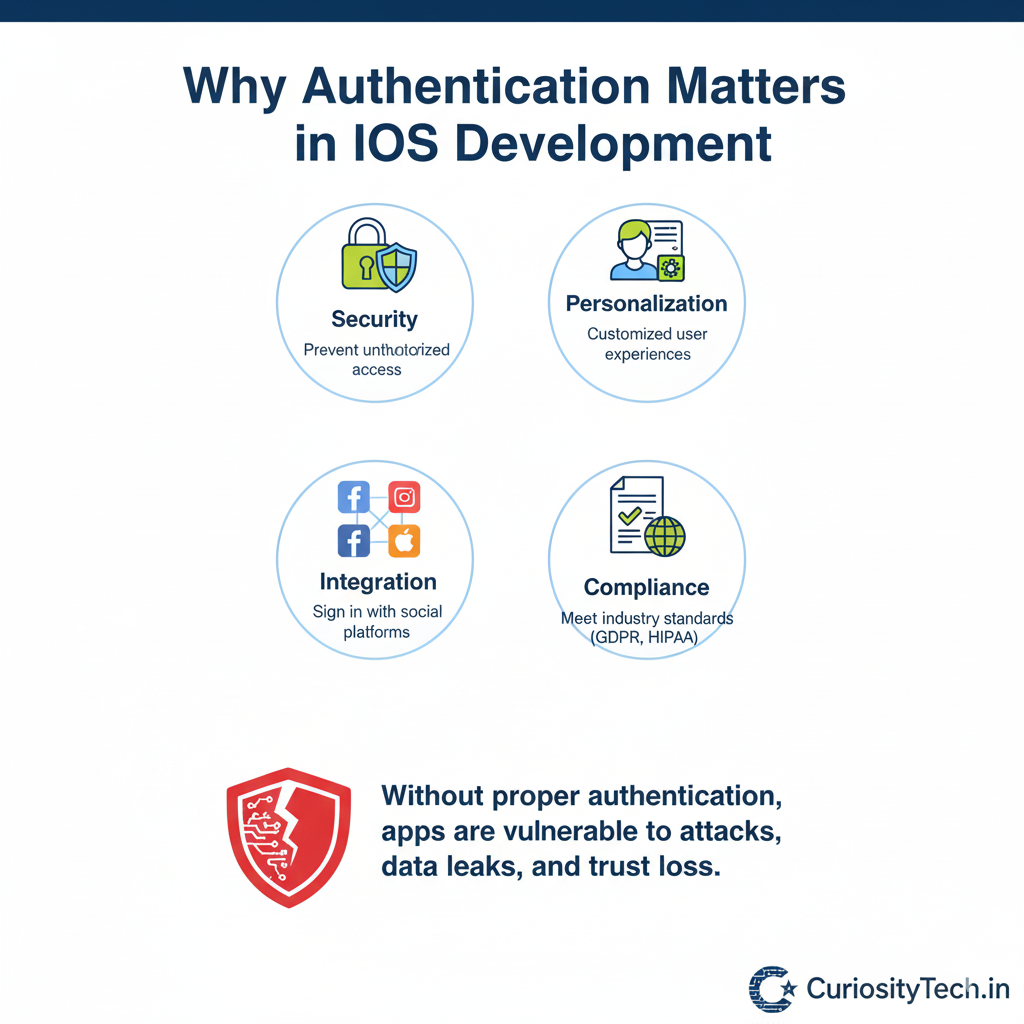
- Security: Prevent unauthorized access to sensitive data.
- Personalization: Deliver customized user experiences based on user identity.
- Integration: Enable users to sign in with social platforms (Google, Facebook, Apple ID).
- Compliance: Meet industry standards like GDPR, HIPAA, PCI DSS where identity verification is required.
Without proper authentication, apps are vulnerable to attacks, data leaks, and trust loss.
Authentication Methods
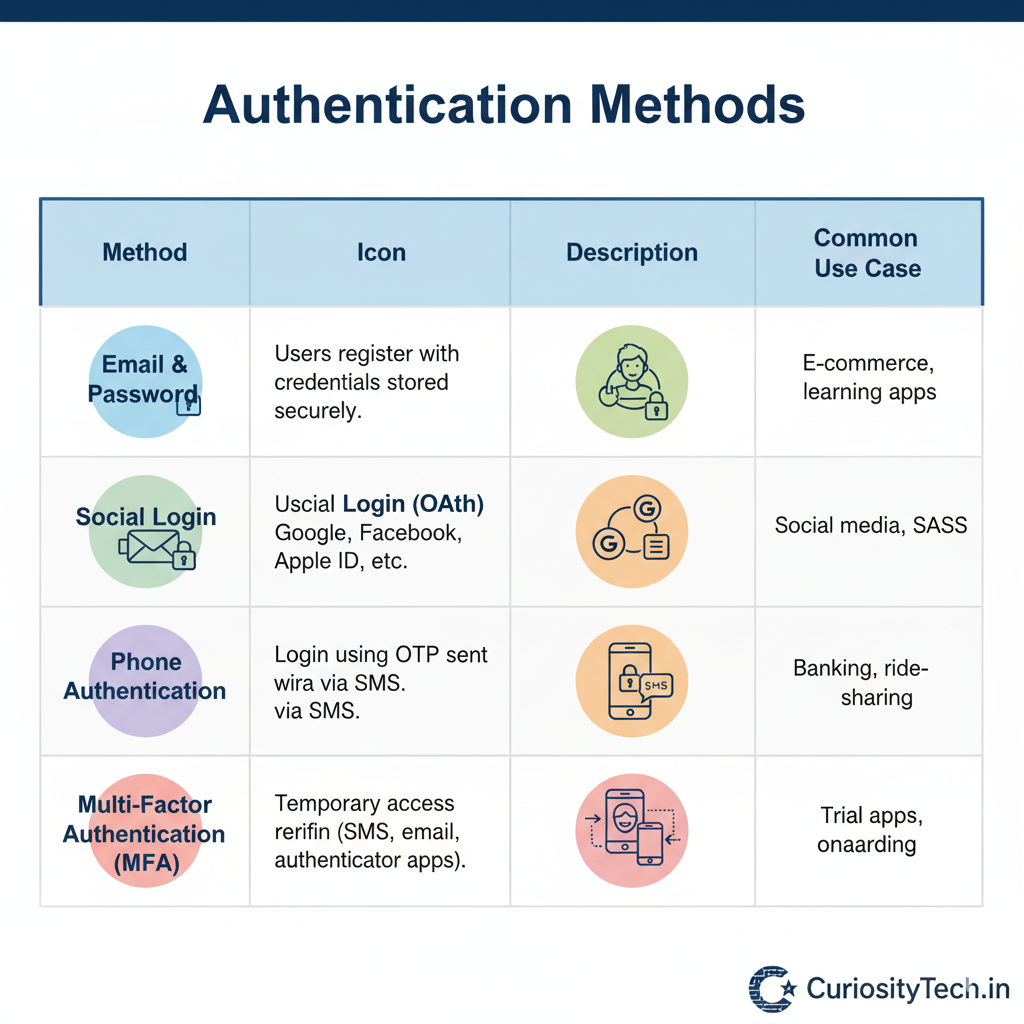
There are multiple authentication approaches:
| Method | Description | Common Use Case |
| Email & Password | Users register with credentials stored securely in Firebase/Auth server | E-commerce, learning apps |
| Social Login (OAuth) | Users authenticate via Google, Facebook, Apple ID, GitHub, etc. | Social media, SaaS apps |
| Phone Authentication | Login using OTP sent via SMS | Banking, ride-sharing |
| Anonymous Authentication | Temporary access without sign-up | Trial apps, onboarding |
| Multi-Factor Authentication (MFA) | Additional verification (SMS, email, authenticator apps) | Banking, enterprise security |
Firebase Authentication in iOS
Firebase Authentication provides backend services, SDKs, and UI libraries to simplify authentication.
Step 1: Setup Firebase in iOS App
- Create a Firebase project in Firebase Console.
- Register your iOS app (Bundle Identifier required).
- Download and add GoogleService-Info.plist to your Xcode project.
- Install Firebase SDK via Swift Package Manager or CocoaPods.
import FirebaseCore
import FirebaseAuth
@main
struct MyApp: App {
init() {
FirebaseApp.configure()
}
var body: some Scene {
WindowGroup {
ContentView()
}
}
}
Step 2: Email & Password Authentication
Auth.auth().createUser(withEmail: “user@curiositytech.in”, password: “securePassword”) { result, error in
if let error = error {
print(“Error: \(error.localizedDescription)”)
} else {
print(“User registered: \(result?.user.uid ?? “”)”)
}
}
For login:
Auth.auth().signIn(withEmail: “user@curiositytech.in”, password: “securePassword”) { result, error in
if let user = result?.user {
print(“Logged in as: \(user.email ?? “”)”)
}
}
Step 3: Social Authentication with OAuth
Firebase supports OAuth providers: Google, Facebook, Twitter, Apple ID, GitHub.
Google Sign-In Example:
- Enable Google Sign-In in Firebase Console.
- Install GoogleSignIn SDK.
- Authenticate and pass credentials to Firebase:
let credential = GoogleAuthProvider.credential(withIDToken: idToken, accessToken: accessToken)
Auth.auth().signIn(with: credential) { authResult, error in
if let user = authResult?.user {
print(“Google signed in: \(user.displayName ?? “”)”)
}
}
Step 4: Apple Sign-In (Mandatory for App Store with Login Options)
Apple requires apps with third-party login (e.g., Google, Facebook) to also provide Sign in with Apple.
import AuthenticationServices
// Request Apple ID login
let request = ASAuthorizationAppleIDProvider().createRequest()
request.requestedScopes = [.fullName, .email]
You then exchange the credential with Firebase’s OAuthProvider.
Step 5: Managing User Sessions
Firebase automatically persists sessions across app launches. Developers can:
- Check if user is logged in:
if let user = Auth.auth().currentUser {
print(“Logged in as: \(user.email ?? “”)”)
}
- Logout:
try? Auth.auth().signOut()
OAuth (Open Authorization) – Beyond Firebase
While Firebase simplifies authentication, OAuth is the global standard for delegated authorization.
OAuth Workflow (Simplified Diagram)
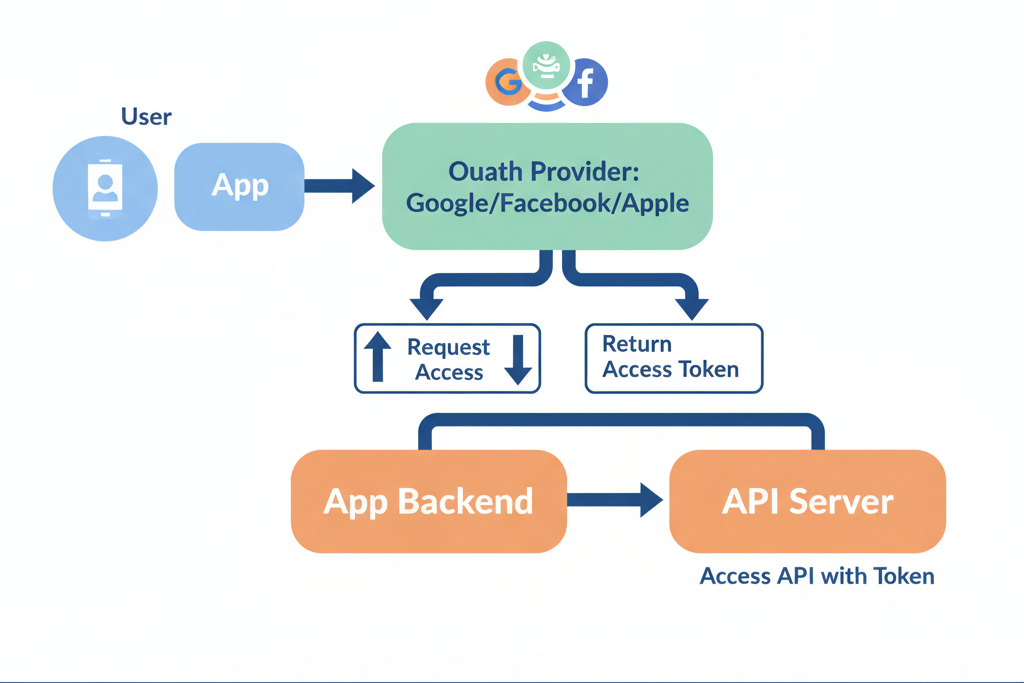
Key Concepts
- Access Token: Temporary token granting access to APIs.
- Refresh Token: Longer-lived token to request new access tokens.
- Scopes: Define what data/app resources can be accessed.
Best Practices for Authentication
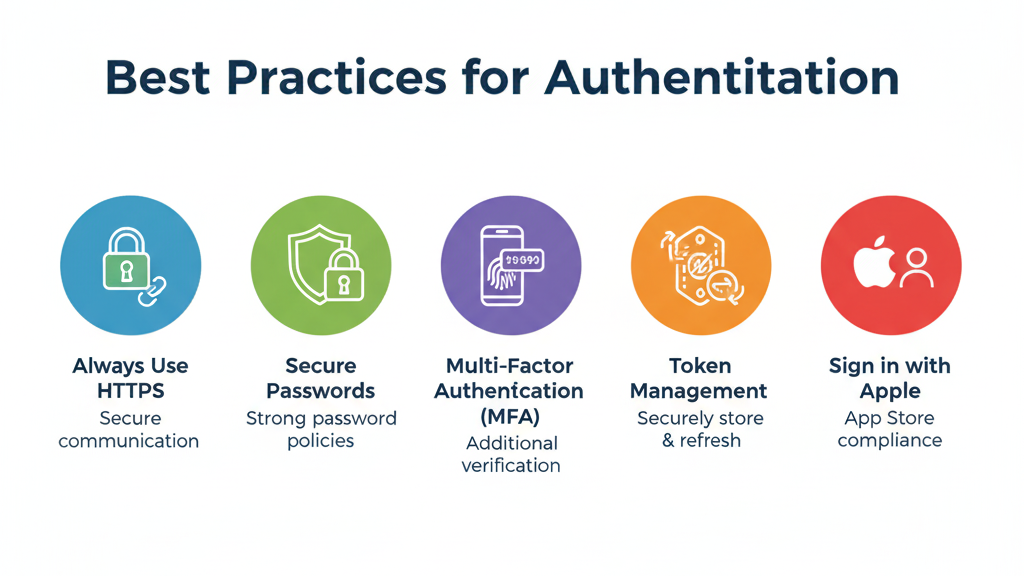
- Always Use HTTPS: Never send credentials over plain HTTP.
- Secure Passwords: Enforce strong password policies.
- Multi-Factor Authentication (MFA): Enable for sensitive apps.
- Token Management: Securely store and refresh tokens.
- Session Expiry: Auto-expire inactive sessions to reduce risks.
- Sign in with Apple: Mandatory for App Store compliance when offering 3rd-party login.
- Respect Privacy: Request only necessary scopes/permissions.
At CuriosityTech.in, learners implement real-world authentication flows, test with multiple providers, and study attack scenarios like phishing or token hijacking to build defense strategies.
Challenges & Solutions
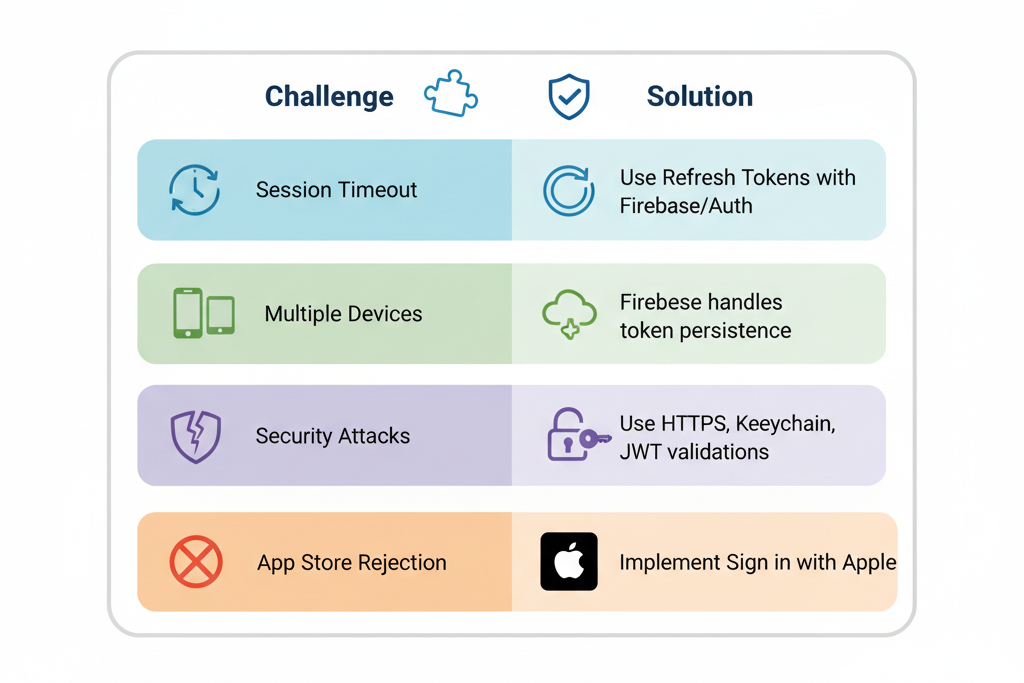
| Challenge | Example | Solution |
| Session Timeout | User’s token expires mid-session | Use Refresh Tokens with Firebase/Auth |
| Multiple Devices | Login sync across iPhone & iPad | Firebase handles token persistence |
| Security Attacks | Token theft, replay attacks | Use HTTPS, Keychain, JWT validations |
| App Store Rejection | Missing Apple login option | Implement Sign in with Apple |
Becoming an Expert
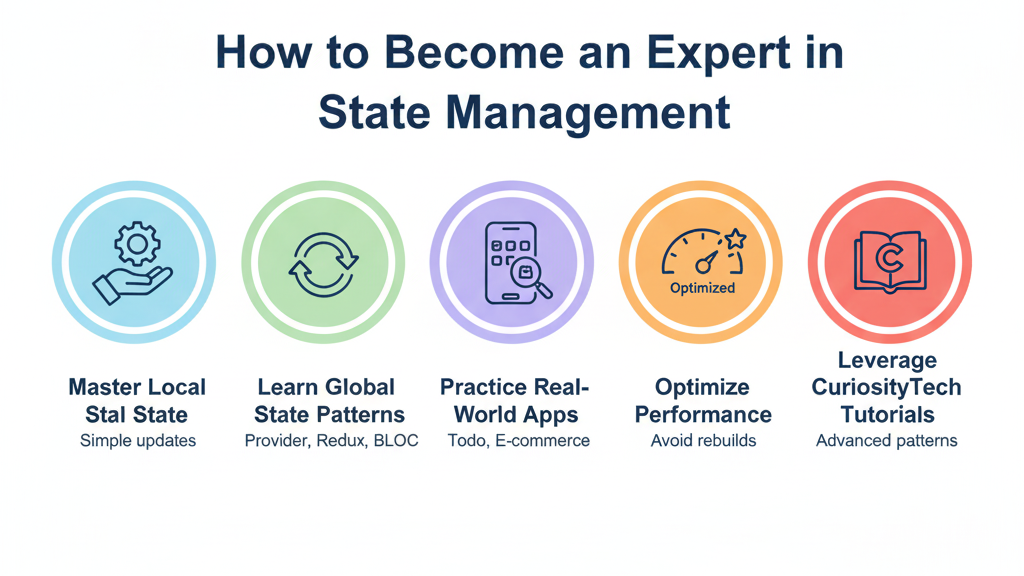
- Understand OAuth 2.0 & OpenID Connect thoroughly.
- Master Firebase SDK alongside custom backend authentication.
- Integrate with Keychain for secure token storage.
- Test under network failures & attack simulations.
- Stay updated with Apple’s App Store authentication policies.
At Curiosity Tech, we encourage developers to go beyond tutorials by creating multi-provider login systems, integrating Firebase with custom APIs, and ensuring compliance with security best practices.
Conclusion
Authentication is the foundation of secure, user-centric iOS apps. By mastering Firebase Authentication and OAuth, developers can implement robust, scalable, and compliant login systems. Combining email/password, social login, Apple sign-in, and multi-factor authentication, ensures apps are future-proof and trusted by users. At Curiosity Tech, learners graduate not only knowing how to integrate Firebase but also understanding security principles and real-world implications, becoming industry-ready professionals.